 laTable
Guests order without waiting for a waiter
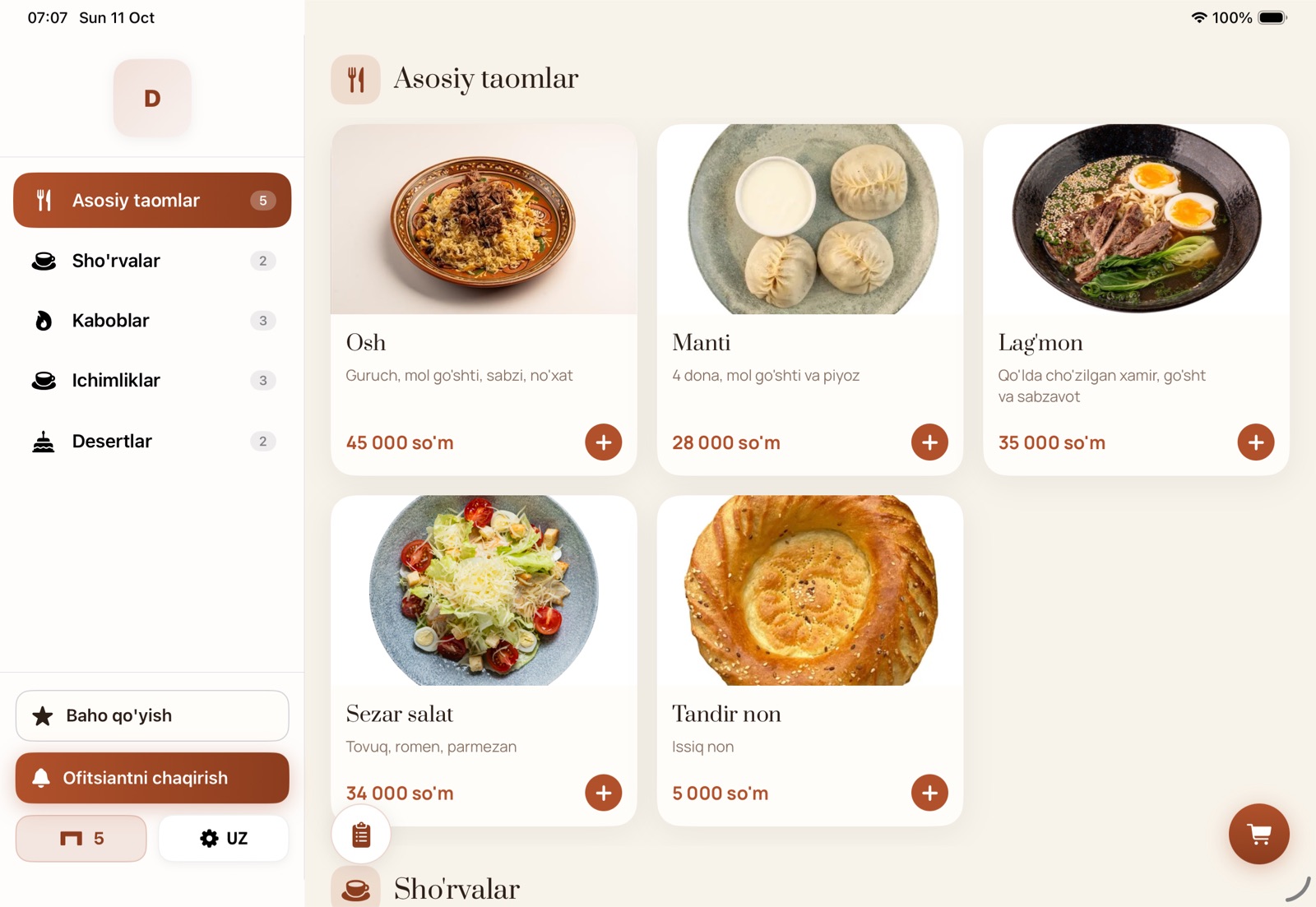
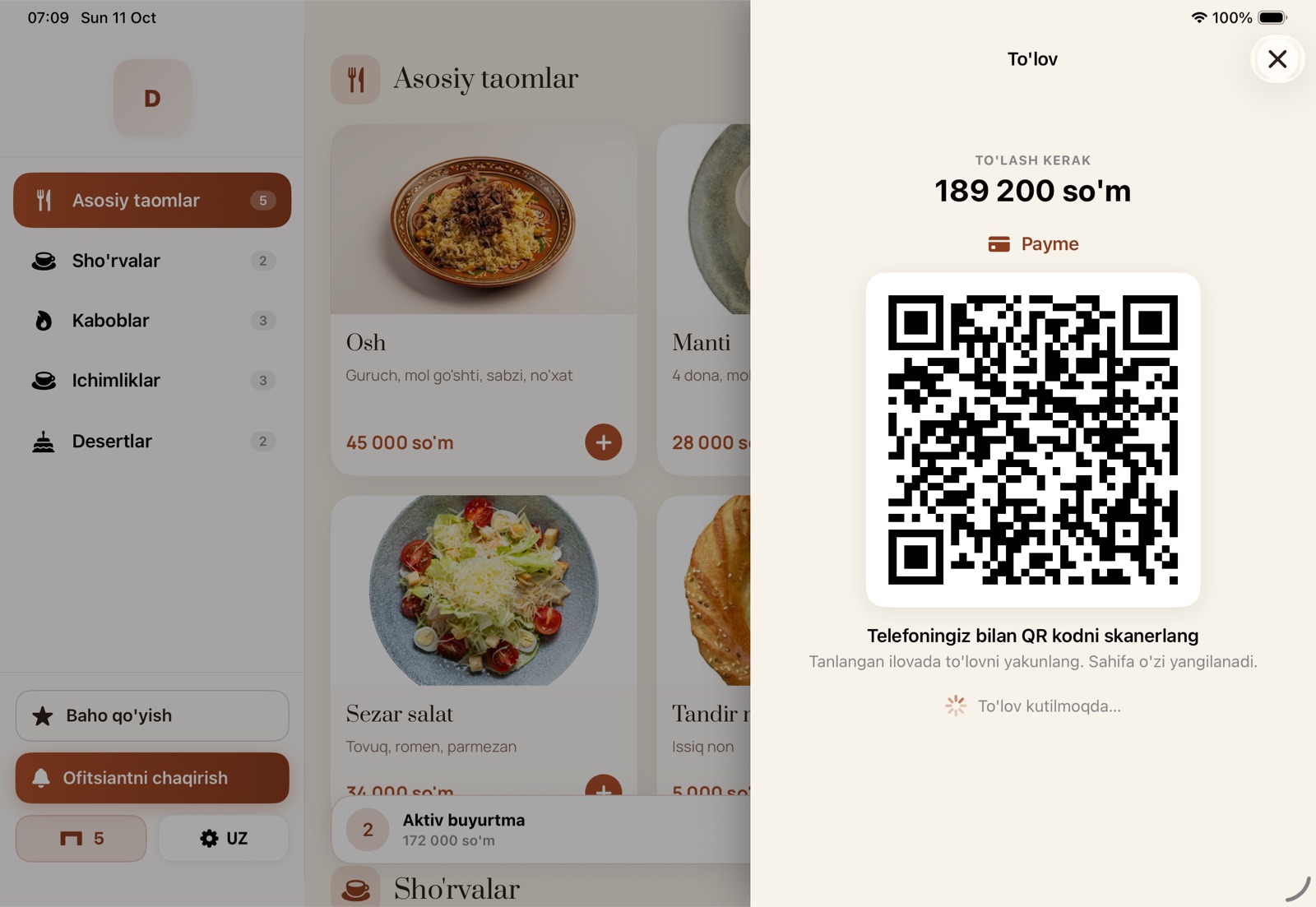
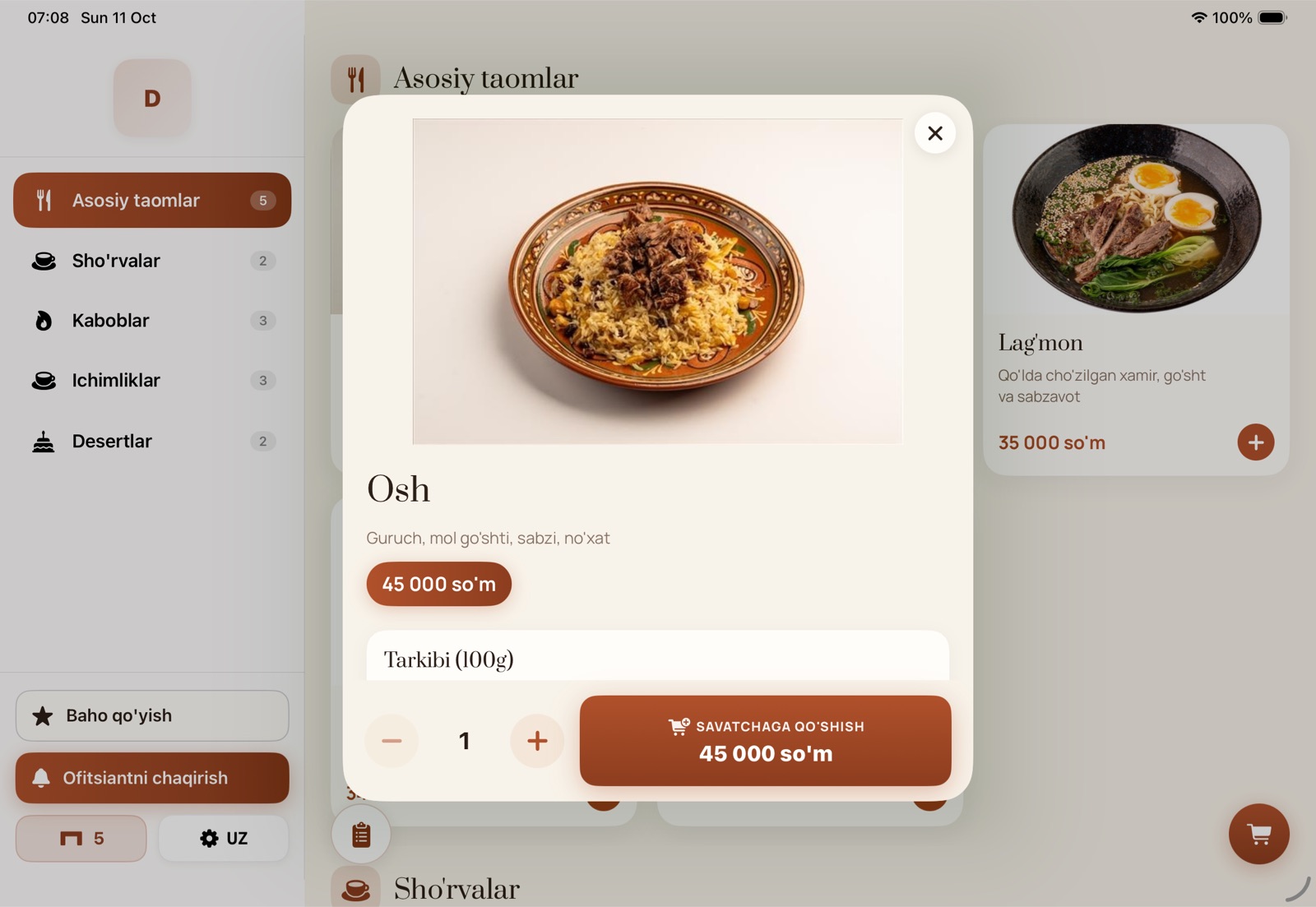
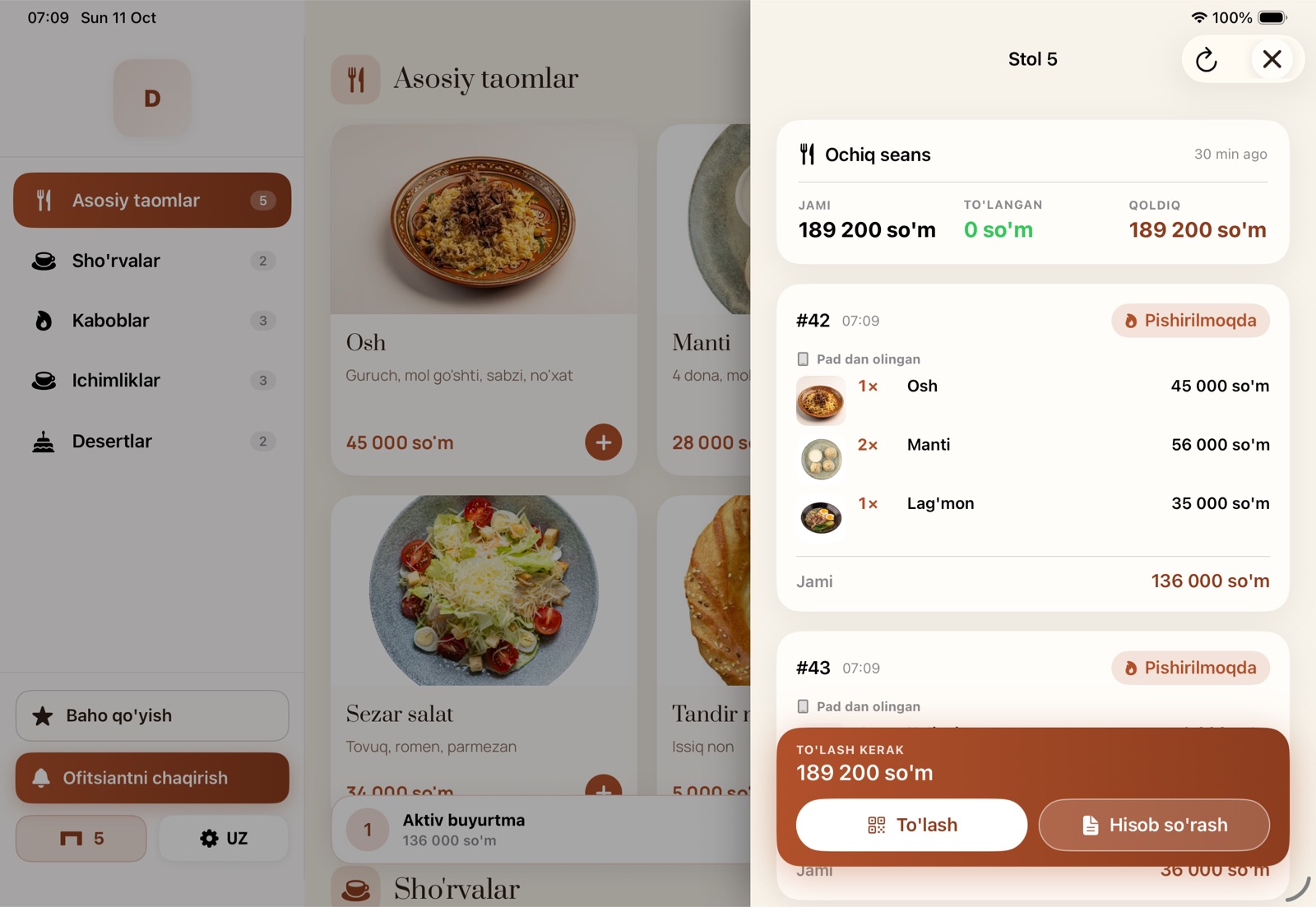
The tablet sits on the table: guests pick dishes from a photo menu and the order goes straight to the POS and kitchen. Checking the bill, calling a waiter and paying by QR — all on the same screen.
The menu comes live from the laCafe panel — no separate data entry. A tablet links to its table with a 6-character code.
Everything the table needs
Waiters no longer carry menus around: they bring the food and answer calls.
Already connected to laCafe
laTable is part of the laCafe ecosystem: it works with your menu, tables, POS, waiters and payment apps.
Live menu
Sections, dishes, photos and stop list from the laCafe panel. A sold-out dish is dimmed on the tablet and cannot be added.
Per-table menu
Each tablet is bound to a table: the hall or branch menu is picked automatically, or assign a dedicated menu to a tablet.
Online and cash
Payme, Click, Uzum — via the accounts connected in your restaurant. Cash and Terminal buttons call a waiter with the bill.
Guest feedback
Guests rate the service with stars and a comment — it lands in the Feedback list of the laCafe panel.
Kiosk mode
The tablet runs full screen and guests can't leave the app. When the table is closed it's ready for the next guest.
3 languages
Guests choose Uzbek, Russian or English themselves.
From choosing to paying in a few taps
- Large photo, ingredients and price right in the dish card
- Dish notes: “not spicy”, “no onion”
- Live order status: accepted, cooking, ready
- Table bill with service charge — same as the POS receipt
- Payment QR — guests pay on their own phone
Over the internet or on the hall network
The mode is chosen on the pairing screen. Guests see the same screen either way.
Global
No branch server, over the internet: the tablet connects to the laTable service and orders reach the POS through laCafe. The fastest start for a new restaurant.
Local
Via laBox on the branch computer, on the restaurant network. Orders keep reaching the POS even if the internet drops.
Devices
iPad and Android tablets. One tablet per table — add them in laCafe settings and disconnect any time.
Install it in your restaurant — free
laTable is in the laCafe app store. Once installed, branches, tables and menu come from the laCafe panel.
- App store → laTable → InstallNo laCafe account yet — get connected via lacafe.uz.
- Settings → Apps → laTable → Add tabletPick the branch and table, menu and payment methods — a 6-character code appears.
- Enter the code on the tabletOpen laTable, choose “Global” and enter the code — the table is ready.
Frequently asked questions
Where do orders go?
To the table's current bill: visible in laCafe and, if a POS is connected (iiko, Poster and others), sent there and to the kitchen.
Where do I fill in the menu?
In the laCafe panel menu: sections, dishes, photos, prices and stop list. Nothing to enter separately for the tablet.
How do guests pay?
Online — by the on-screen QR on their own phone (Payme, Click, Uzum; must be connected in your restaurant). Cash or terminal — the button calls a waiter with the bill.
How much does laTable cost?
Free in the laCafe store. No limit on the number of tablets.
What if a tablet is stolen or replaced?
Press “Disconnect” in settings — the tablet instantly returns to the pairing screen. Link a new one with a new code.